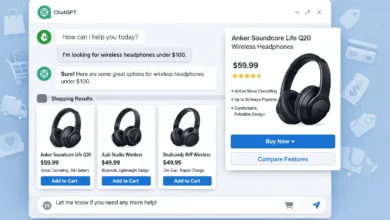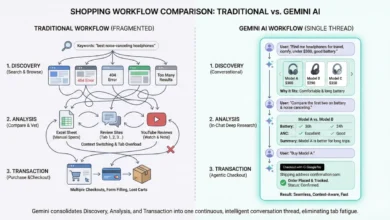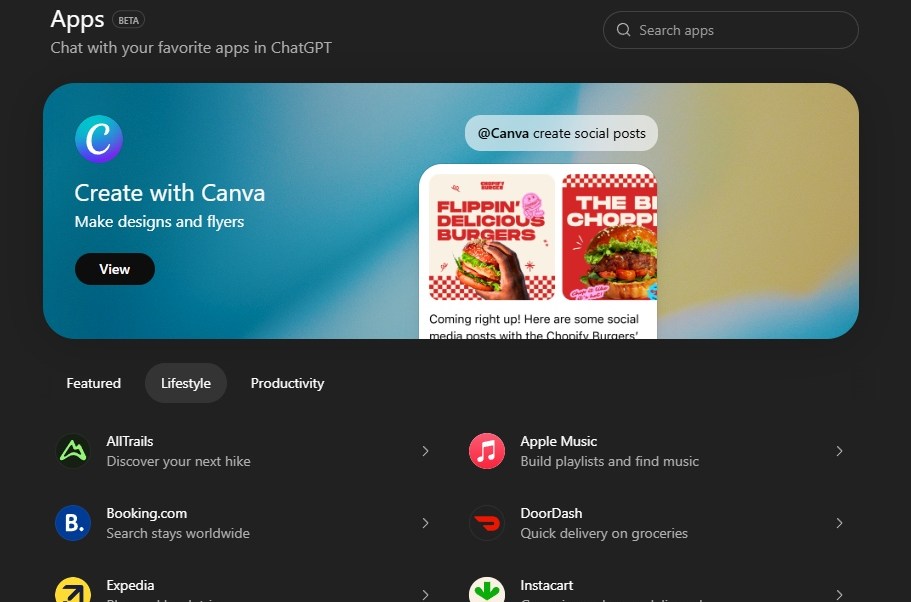
Many users open ChatGPT every day but never notice the App Store inside it. This hidden section gives access to around 75 apps that extend what ChatGPT can do. These apps help with research, writing, analysis, automation, design, learning, and daily work.
This guide explains the App Store in simple terms. It also gives ready-to-use prompts so beginners can start without confusion.


What Is the ChatGPT App Store?
The ChatGPT App Store is a built-in marketplace inside ChatGPT.
It allows you to add apps that connect ChatGPT with external tools and services.
These apps help ChatGPT:
- Fetch live data
- Analyze files
- Create visuals
- Automate tasks
- Work with third-party platforms
You do not need coding skills.
Where to Find the App Store in ChatGPT
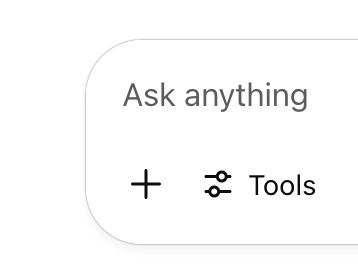
Steps:
- Open ChatGPT in your browser
- Click the “+” or Tools option
- Select App Store
- Browse or search apps
- Enable an app
- Start using it in chat
Once enabled, the app works inside your normal conversation.
Types of Apps Available (Beginner View)
You do not need to learn all 75 apps. They fall into clear groups.
1. Research & Data Apps
Used for search, reports, and facts.
- Market research
- Company analysis
- Trend tracking
2. Writing & Content Apps
Used for blogs, emails, scripts, and summaries.
- SEO support
- Content formatting
- Grammar improvement
3. File & Document Apps
Used for PDFs, Excel, CSV, and Docs.
- File upload
- Data extraction
- Table analysis
4. Design & Media Apps
Used for images, slides, and visuals.
- Image generation
- Diagram creation
- Presentation drafts
5. Productivity & Automation Apps
Used for workflows and task support.
- Scheduling help
- Task breakdown
- Tool integrations
How to Use Apps Correctly (Most Important Part)
Apps do not work well with vague input.
You must tell ChatGPT when and how to use the app.
Basic Rule
Always say:
- What you want
- Which app to use
- What format you expect
Universal Starter Prompt (Use This First)
Use this prompt with any new app:
You have access to apps.
Suggest the best app for this task and use it.

Task:
[Explain your task clearly]

Output needed:
[Bullet points / table / summary / steps]

If the app has limits, tell me before proceeding.
This prevents wrong app usage.
Ready-to-Use Prompts by Use Case
1. Research Faster with Apps
Use a research or browsing app.
Find current and reliable information on:
[topic]

Summarize findings in simple points.
Avoid technical language.
2. Analyze PDFs or Files
Use the file analysis app.

I am uploading a document.
Extract:
- Key points
- Action items
- Important numbers

Give output in bullet points.
3. Improve Writing Quality
Use a writing or editing app.

Rewrite the following text for clarity.
Keep sentences short.
Use simple words.
Remove fluff.

Text:
[paste text]
4. Create Visual Content
Use a design or image app.

Create:
- One main visual idea
- Clear theme
- Minimal elements

Purpose:
[blog / social media / presentation]
5. Automate a Task
Use any productivity or automation app.

Break this task into steps.
Suggest tools or actions for each step.

Task:
[describe task]
How to Combine Apps with Normal ChatGPT
Best results come from mixing apps + reasoning.
Example:
- Use an app to fetch data
- Ask ChatGPT to explain it
- Ask ChatGPT to simplify it
- Ask ChatGPT to apply it
Use the app to collect data.
Then explain the results in plain English.
Then suggest how a beginner can use this.
Common Beginner Mistakes (Avoid These)
- Enabling too many apps at once
- Not telling ChatGPT which app to use
- Expecting apps to work automatically
- Giving unclear instructions
- Ignoring app limitations
Apps assist ChatGPT. They do not replace clear thinking.
How to Decide Which App to Use
Ask ChatGPT directly:
I want to do [task].
Which app should I use and why?
Use only one app.
This saves time and avoids confusion.
Beginner Checklist: Using the ChatGPT App Store (Step-by-Step)
Use this checklist before you explore any app. It removes confusion and helps you get results fast.
Step 1: Confirm You Can Access Apps
- Open ChatGPT in a browser
- Click the + / Tools option
- Check if App Store is visible
If you see it, you are ready.
Step 2: Start With One App Only
- Enable one app
- Do not enable multiple apps together
- Learn one app before adding another
This avoids wrong outputs.
Step 3: Always Tell ChatGPT to Use the App
Bad input:
“Analyze this file”
Good input:
Use the file analysis app.
Analyze this file and summarize key points.
Apps do not activate on their own.
Step 4: Define Output Clearly
Always specify:
- Format (points, table, steps)
- Depth (short or detailed)
- Tone (simple, professional)
Example:
Use the app and give output in 5 simple bullet points.
Step 5: Ask About Limits First
Some apps have limits.
Use:
Before using the app, tell me its limits.
Step 6: Combine App + Explanation
Best workflow:
- App collects data
- ChatGPT explains it
- ChatGPT simplifies it
Example:
Use the app to fetch data.
Then explain it in plain English.
Step 7: Disable Apps You Don’t Use
- Remove unused apps
- Keep your workspace clean
- Reduce confusion
Top 10 Must-Use ChatGPT Apps (Beginner Friendly)
These apps give the highest value with the least learning effort.
1. Browser / Web Research App
Best for: Current information, trends, comparisons
Use when:
- You need fresh data
- You want sources
- You want summaries
Starter Prompt
Use the browser app.
Find current information on [topic].
Summarize in simple points.
2. PDF & File Reader App
Best for: PDFs, reports, ebooks, policies
Use when:
- File is long
- You need key points
- You want quick insights
Starter Prompt
Use the file reader app.
Extract key points and action items.
3. Spreadsheet / Data Analysis App
Best for: Excel, CSV, numbers
Use when:
- You want trends
- You need summaries
- You want insights
Starter Prompt
Use the data analysis app.
Explain trends in simple language.
4. Image Generation App
Best for: Blog images, social posts, thumbnails
Use when:
- You need visuals
- You want quick designs
Starter Prompt
Use the image app.
Create a clean visual for a blog post.
5. Presentation / Slides App
Best for: Slides, decks, training material
Use when:
- You need structure
- You want slide ideas
Starter Prompt
Use the presentation app.
Create a 6-slide outline with headings.
6. Writing & Editing App
Best for: Blogs, emails, posts
Use when:
- Text feels heavy
- You want clarity
Starter Prompt
Use the writing app.
Rewrite in short, clear sentences.
7. Diagram & Flowchart App
Best for: Processes, systems, learning
Use when:
- You explain steps
- You teach concepts
Starter Prompt
Use the diagram app.
Create a simple flow of this process.
8. Code Interpreter / Logic App
Best for: Logic, calculations, validation
Use when:
- You want structured reasoning
- You want checks
Starter Prompt
Use the logic app.
Validate this approach step by step.
9. Productivity / Task Planner App
Best for: Work planning, routines
Use when:
- Task feels large
- You want steps
Starter Prompt
Use the productivity app.
Break this task into daily steps.
10. Knowledge Organizer App
Best for: Notes, learning, summaries
Use when:
- You study topics
- You collect ideas
Starter Prompt
Use the knowledge app.
Organize this topic into sections.
How Beginners Should Use These 10 Apps
Simple rule:
- Research → Browser
- Files → File Reader
- Numbers → Data App
- Visuals → Image App
- Structure → Slides or Diagrams
- Text → Writing App
- Planning → Productivity App
Final Tip for Beginners
You do not need all apps.
You need the right app for the right task.
Start with:
- Browser app
- File reader app
- Writing app
Best Way to Learn the App Store
Start small:
- Enable 1 app
- Use it for 3–4 tasks
- Learn its limits
- Then add another
You do not need all 75 apps.
Final Thoughts
The ChatGPT App Store turns ChatGPT into a multi-tool workspace.
For beginners, the key is:
- Simple tasks
- Clear prompts
- One app at a time
When used correctly, these apps save time, reduce manual work, and improve output quality, without extra tools or tabs.